
Tools mentioned in this article
Open the browser-based tool while you read and try the workflow immediately.
Start by making JSON readable
API responses, webhook payloads, logs, and configuration files often arrive as JSON.
In practice, that JSON may be minified into one long line, deeply nested, or full of escaped strings.
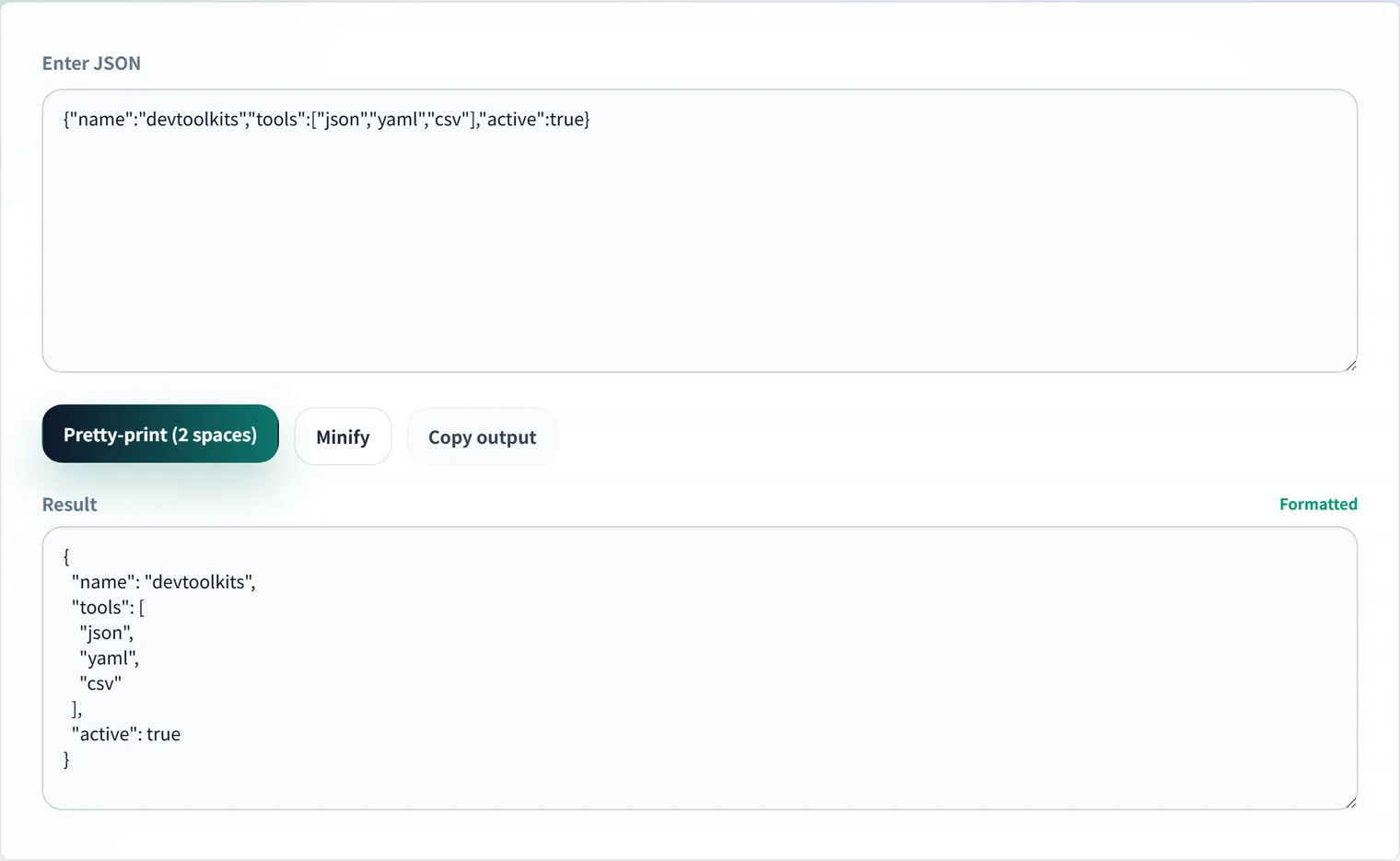
Reading it as-is makes it easy to miss important fields or misunderstand where an array or object begins.
Formatting the JSON first gives you a clear structure before you debug, document, or generate code from it.
For example, suppose this single-line response arrives:
{"id":42,"name":"Alice","roles":["admin","editor"],"profile":{"city":"Tokyo"}}Formatting it makes the nesting and arrays clear at a glance:
{
  "id": 42,
  "name": "Alice",
  "roles": ["admin", "editor"],
  "profile": {
    "city": "Tokyo"
  }
}
What to check after formatting
Nesting
Formatted JSON makes ownership clear.
You can quickly see whether a field belongs to user, profile, an item inside an array, or a separate object entirely.
Value types
"123" is a string, while 123 is a number.
"true" is not the same as true, and null is not the same as an empty string.
Checking these differences early prevents many display, validation, and integration bugs.
Syntax errors
Trailing commas, missing braces, and unquoted keys are common JSON mistakes.
A formatter that parses the input helps you catch those issues before the data reaches your application code.
The example below has two pieces that are invalid as JSON:
{
  "name": "Alice",
  "tags": ["a", "b",],   // trailing comma
  age: 30                 // key is not quoted
}
JSON does not allow trailing commas, comments, or unquoted keys. These often sneak in when you copy a hand-written object or a JavaScript object literal, so confirm the input parses in a formatter first.
Practical use cases
- API debugging: Paste a response from the browser Network panel or curl output and inspect the fields.
- Log analysis: Format one-line structured logs so you can find the relevant keys faster.
- Sample cleanup: Prepare readable JSON examples for docs, tests, or bug reports.
- Schema preparation: Use a clean JSON sample as the starting point for TypeScript types, Zod schemas, or OpenAPI definitions.
Use DevToolKits for JSON workflows
The JSON formatter lets you format and validate JSON directly in the browser.
After the structure is clear, you can continue with nearby tools:
- JSON ⇔ YAML converter for configuration formats.
- JSON to TypeScript types for type-safe development.
- JSON to Zod schema for runtime validation.
- JSON to OpenAPI schema for API documentation.
JSON formatting is a small step, but it often unlocks the rest of the workflow.
Frequently Asked Questions
Can I use comments or trailing commas in JSON?
Standard JSON allows neither comments nor trailing commas. Those are features of extensions like JSON5 or JSONC, which some config tools support on their own. For data exchanged with APIs, confirm it is valid standard JSON in a formatter.
Is it safe to paste JSON with sensitive data into an external tool?
Sending responses containing API keys or personal data to a service whose processing is opaque is best avoided. The JSON formatter processes everything in your browser and never sends input to a server, so it’s safe for inspecting sensitive data.
What should I do after formatting?
Once the structure is clear, you can branch into types, validation, or API specs depending on your need: TypeScript type generation for types, Zod schema generation for runtime checks, and OpenAPI generation for sharing the spec.