
Tools mentioned in this article
Open the browser-based tool while you read and try the workflow immediately.
QR codes hide the destination until you scan them
QR codes are convenient, but the image itself does not tell you where it leads. Before printing a code, sharing it in a campaign, or opening a code from an unknown source, it is useful to inspect the stored text or URL directly.
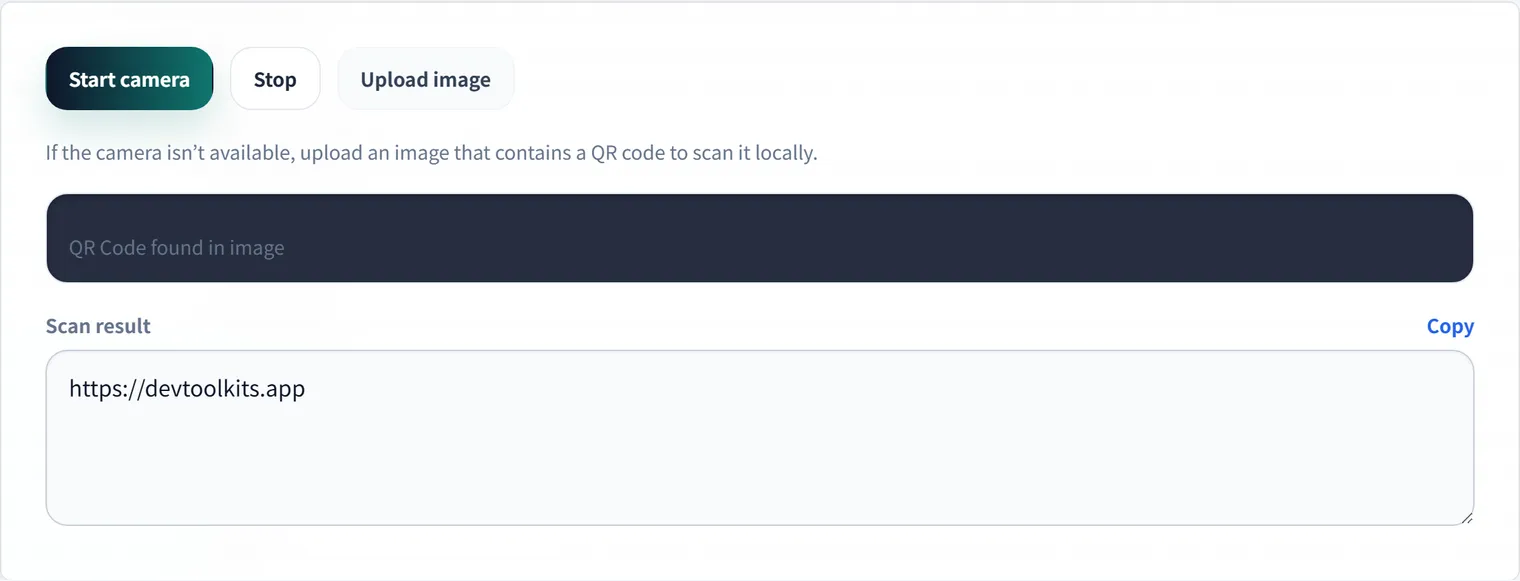
Use the QR Code Reader to decode QR codes from images and screenshots in the browser.
Example: Verifying a campaign QR’s destination
Suppose a flyer’s QR code, just before printing, is meant to point to this URL:
https://example.com/campaign/spring?utm_source=flyer&utm_medium=qr&utm_campaign=2026_springLoad the QR image into the reader and check the decoded string against three things: the domain, the path, and the UTM parameters. If you spot staging.example.com, an old campaign name, stray spaces, or full-width symbols at this point, you can fix them before printing. Since QR codes look identical as images, adding a “verify the text” step prevents costly mistakes.
What to check before publishing a QR code
Verify that the code points to the intended production URL, not a staging page. Check that UTM parameters are present if the link is part of a campaign. Also test the QR code at the size where it will appear in print or on screen.
If you are creating a new code, generate it with the QR Code Generator and then read it back before publishing.
Why scanning can fail
Small, blurry, low-contrast, cropped, or tilted QR codes can be difficult to read. Leave margin around the code, keep the contrast high, and avoid placing it over busy backgrounds.
Summary
Generating a QR code is only half the workflow. Reading it back before launch helps catch wrong URLs, missing tracking parameters, and print-quality problems while they are still easy to fix.
Frequently Asked Questions
Can I read a QR code from a screenshot or image file?
Yes. The QR Code Reader decodes QR codes not only from the camera but also from image files and screenshots. It’s handy when you want to inspect the contents as text before opening a shared image.
Why does scanning fail?
Small, blurry images, insufficient margin (the quiet zone), or low contrast against the background all make scanning more likely to fail. For print, check at a size close to the final placement; for images, revisit the resolution and margins.
Is the decoded content sent anywhere?
No. Decoding happens entirely in your browser, and neither the image nor the result is sent to a server. It’s safe to use even when inspecting a QR code of unknown origin.