
Tools mentioned in this article
Open the browser-based tool while you read and try the workflow immediately.
“Wait, what did ‘755’ mean again?”
If you’ve spent any time managing a Linux server, you’ve almost certainly hit the “wall” of permissions. “I tried to run a script but got Permission denied.” “My configuration file can’t be read.” When faced with errors like these, have you ever found yourself copy-pasting a command like chmod 755 from a website without really understanding what it does?
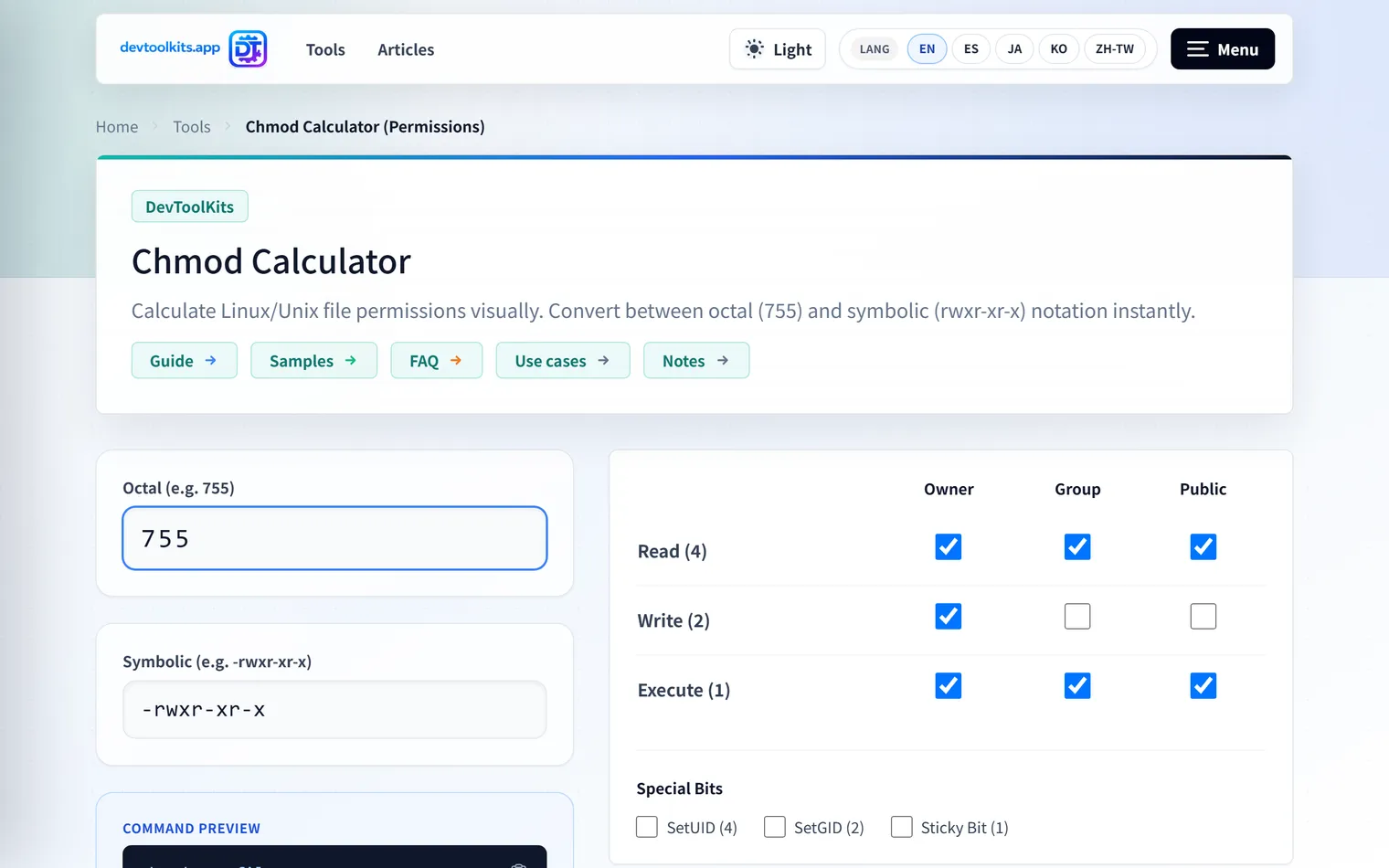
What does “7” stand for? What does “5” mean? How should you read a sequence of symbols like rwxr-xr-x? Once you learn it, it’s simple, but in the heat of the moment, it’s easy to get confused. This tool was born to solve that exact common developer headache.
Control “Permissions” Visually
DevToolKits’ chmod Calculator is a place where you can intuitively manage complex permission settings.
- Just Check the Boxes: Switch between “Read,” “Write,” and “Execute” permissions for the Owner, Group, and Others. As you click, the numeric value (like
755) and the string representation (likerwxr-xr-x) update instantly. - Reverse Lookup with Ease: If you have a mysterious number already (e.g.,
644), just type it into the form. You’ll instantly see exactly what combination of permissions that represents. You’ll know in seconds, “Ah, the Group doesn’t have write access.” - Generate Ready-to-Use Commands: Once you’ve finished your configuration, the tool automatically generates a
chmodcommand you can copy and paste directly. Just swap in your filename, and you’re done.
A Perfect Learning Opportunity
Watching the numbers change as you use this tool naturally helps you grasp the underlying logic—that permissions are built on the addition of 4 (Read), 2 (Write), and 1 (Execute).
Move beyond “randomly setting 777 because I was scared” and start choosing appropriate permissions with confidence. Think of this calculator as a playground to take that first step.
Example: Isolating a “Permission denied” After Deploy
When a deployed script won’t run, the log may show:
Permission denied: ./deploy.shFirst, check the file’s permissions.
ls -l deploy.sh
-rw-r--r--  1 app app 1240 May 21 10:00 deploy.sh
-rw-r--r-- is 644, so even the owner has no execute permission. Enabling the owner’s execute bit in the Chmod Calculator shows you the meaning of 744 or 755.
chmod 755 deploy.shAvoid setting everything to 777, though. Check whether only the owner needs to run it or the group does too, and grant the minimum permissions needed.
Conclusion
Permissions are the essential “keys” that protect your server. By correctly understanding the mechanism and using tools wisely, you can transform time spent worrying about errors into time spent on certain, reliable operations. Make your first step into security more enjoyable and intuitive.
Frequently Asked Questions
When do I use chmod 755 vs 644?
755 (rwxr-xr-x) gives the owner read/write/execute and group/others read + execute. Use it for scripts, executables, and directories. 644 (rw-r—r—) has no execute bit and suits “read-only” files like HTML or config. Directories need the execute bit to be entered (cd), so the baseline is usually 644 for files and 755 for directories.
Why should I avoid 777?
777 grants read/write/execute to everyone, raising the risk of file tampering or running malicious scripts. It’s often used as a quick fix when something doesn’t work, but it’s safer to grant only the permissions actually needed (often just the owner’s execute bit). Follow the principle of least privilege.
How do numeric permissions map to rwx symbols?
They’re a sum: read (r) = 4, write (w) = 2, execute (x) = 1. 7 is 4+2+1 = rwx, 5 is 4+1 = r-x, 6 is 4+2 = rw-. The three digits correspond to owner, group, and others. The chmod Calculator lets you toggle checkboxes to see this mapping.