
Tools mentioned in this article
Open the browser-based tool while you read and try the workflow immediately.
Why a docker-compose.yml gets hard to read
Once you have five or ten services, it becomes hard to follow from the YAML which service depends on what and who publishes which port. depends_on is scattered inside each service, and volumes and networks appear in two places: the top level and each service.
The Docker Compose Visualizer draws how the services connect as soon as you paste a docker-compose.yml.
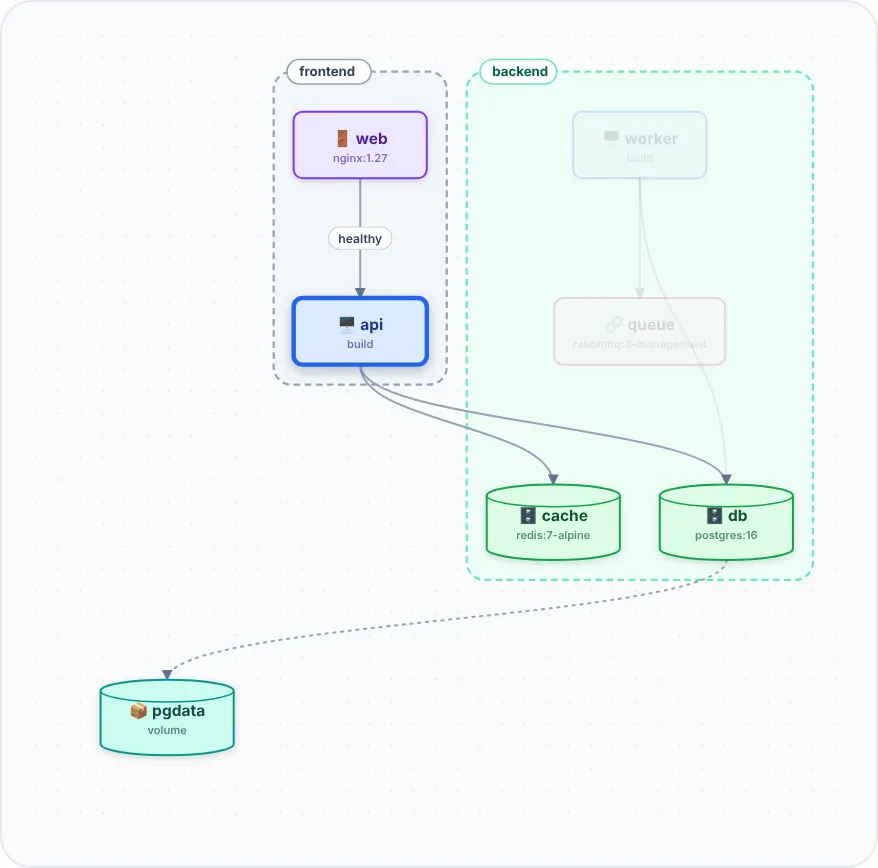
What the diagram shows
- Dependencies (
depends_on): arrows point from the service that depends to the one it depends on, soweb → api → dbshows thatdbstarts first. When the start condition differs from the default (service_started), such ascondition: service_healthy, it is written on the arrow. Legacylinks:are read as dependencies too - Volumes: named volumes become cylinder nodes joined to the services that use them with dotted lines. Bind mounts of host paths are not drawn as nodes (they appear in the details)
- Networks: frame the networks to see boundaries such as
frontend/backend. A service on several networks sits in the frame of the first one; the others appear in the details - Type colors: from the image name it tells databases (
postgres,redis…), gateways (nginx,traefik…), message brokers (rabbitmq…), storage (minio…) and everything else apart by color and icon. The image name (or “build” for build-only services) is written under each node
Hover a node (or focus it with the keyboard) to highlight only its upstream and downstream services. Click it to see the image, ports, dependencies, services that depend on it, volumes, networks and environment variable names (values are not shown).
The “things worth a look” check
Below the diagram is a mechanical check of the configuration.
| Check | What it finds |
|---|---|
| Missing dependency | A service named in depends_on is not under services: (a typo) |
| Circular dependency | It loops back, like a → b → a, so docker compose up cannot start it |
| Host-port conflict | Several services publish the same host port |
| No image or build | The service has nothing to start from |
Untagged or latest |
What you pull can change over time (a digest counts as pinned) |
privileged: true / network_mode: host |
Runs with almost the same rights or network as the host |
docker.sock mount |
The container can control the host’s Docker |
service_healthy without a healthcheck |
Startup waits forever and fails |
| Plain-text secret | A password or key-like variable has a literal value, as in DB_PASSWORD: example (${DB_PASSWORD} and empty values are not flagged) |
| Undeclared volume or network | A name is used that is not in the top-level volumes: / networks: |
This is a mechanical check. Untagged images or docker.sock can be intentional in a development setup. A finding means “please check this”, not that something is wrong.
How to use it
- Paste your
docker-compose.yml(orcompose.yaml) into the input box. A sample is loaded at first - After a short pause the diagram redraws by itself. Ports, volumes, networks, the direction (top to bottom or left to right) and the colors can be switched
- Drag nodes (or use the arrow keys) to rearrange them. “Save SVG” gives an image for a README or design doc
Variables in image, ports and volumes ($VAR and the default-value form) are expanded with the values you paste into the .env box (its content is not stored). extends, include and merging several files (-f) are not handled. If you need them, paste the YAML expanded by docker compose config. Do the final validation with docker compose config and docker compose up.
Your work is saved automatically
The YAML, display settings and node positions are saved automatically in this browser, so you can pick up where you left off. You can also delete the saved data, or export it to JSON and import it again. Nothing is sent to a server.
More tools like this
There are other “paste a config and get a diagram” tools. All of them run only in your browser.
- Kubernetes Manifest Visualizer: Ingress → Service → Pod → ConfigMap / Secret connections, with checks for selector mismatches, NetworkPolicy and PDB
- Terraform Visualizer: references among resources, data sources and modules, with checks for open ingress and plain-text passwords
- OpenAPI Visualizer: endpoints, schemas and
$reflinks, with unused schemas and authentication marks - tsconfig Visualizer: extends inheritance and references, with effective options, referenced projects without composite and overlapping include
FAQ
Are my YAML and passwords sent to a server?
No. Everything is processed in your browser and nothing is sent to a server. Your work is saved only in this browser’s localStorage, and “Delete saved data” removes it.
Does it replace docker compose config?
No. It only reads the YAML to draw a diagram and run checks. Apart from expanding variables in image, ports and volumes (using the .env box), it does not handle extends or include, or merge several files. Use docker compose config for the final validation.
Does the check show environment variable values?
No. Only the names of environment variables are shown, so that values such as passwords do not appear on the screen or in the saved diagram.
Can I use it for Kubernetes manifests or Terraform?
This tool is only for docker-compose.yml. To draw cloud or network diagrams by hand, use the Infrastructure Diagram Builder.
Summary
- A
docker-compose.ymlbecomes a diagram of dependencies, volumes and networks just by pasting it - Arrows point from the service that depends to the one it depends on; hovering a node highlights only its upstream and downstream
- Cycles, missing dependencies, port conflicts and plain-text passwords are checked before you run anything
- Everything is processed in your browser, and your work is saved automatically