
Tools mentioned in this article
Open the browser-based tool while you read and try the workflow immediately.
Comparing “before” and “after” to surface only what changed—that is a diff. You use it in Git code review, comparing config-file backups, reconciling API responses, and more.
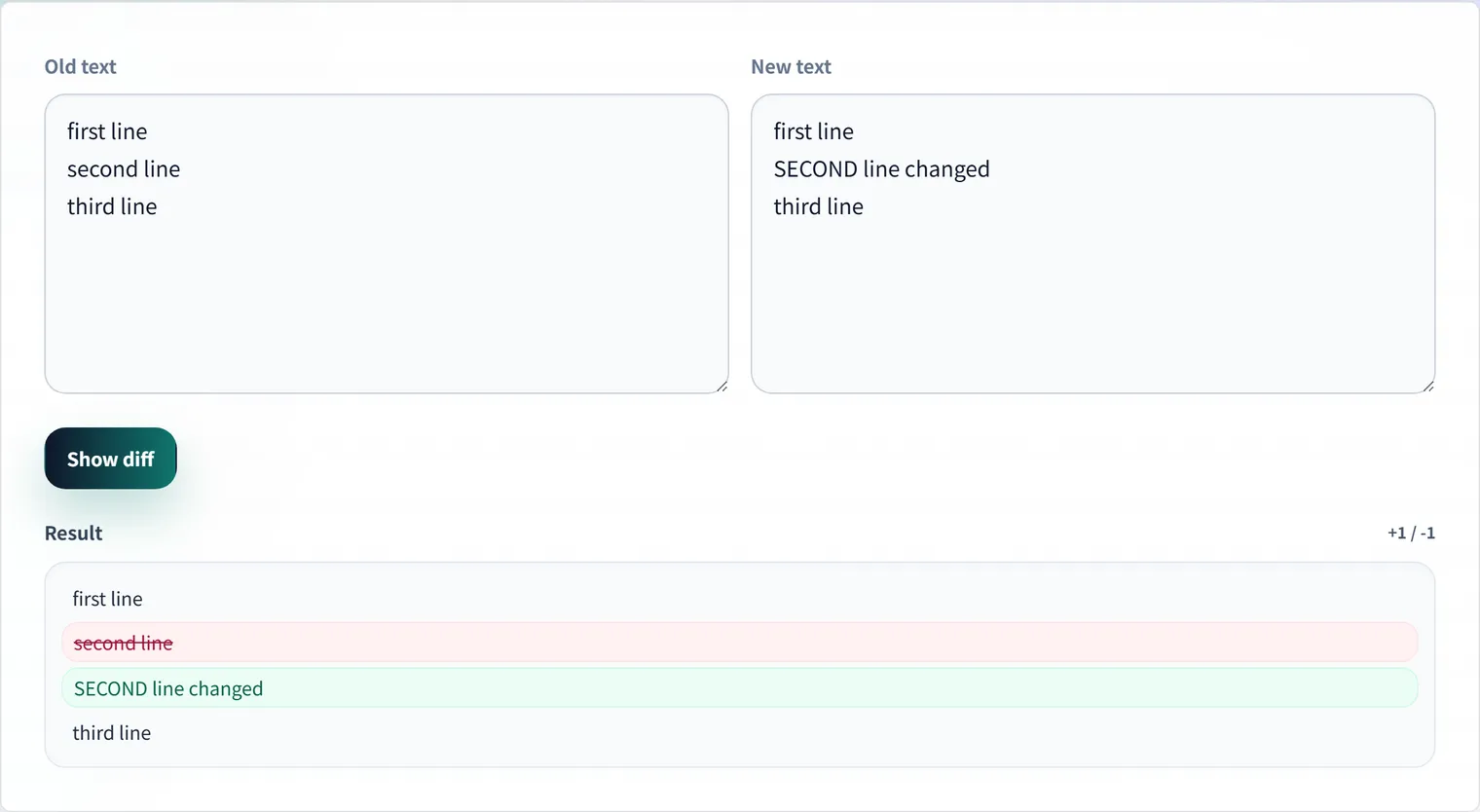
This article explains the basics of reading diffs, the difference between line-level and word-level comparison, and practical usage, with concrete examples.
The Basics: What + and - Mean
The most common unified diff format uses a leading symbol on each line. For the @@ hunk headers, combined @@@ diffs on merges, and rename detection, see the unified diff format reference.
 function greet(name) {
-  return "Hello " + name;
+  return `Hello ${name}`;
}- Lines starting with
-(red) are removed lines - Lines starting with
+(green) are added lines - Unmarked lines are unchanged (shown for context)
So when you “modify” a line, a diff represents it as deleting the old line and adding the new one.
Line-Level vs. Word-Level
Diffs come in two main granularities.
Line-level (line diff)
Judges each line as “same or different.” Good for code and config files. The downside: even a one-character change shows the whole line as changed, so you can’t see which word changed.
Word/character-level
Highlights which part within a line changed. It shines for proofreading text and comparing long single lines (such as minified JSON).
Consider this change:
Before: The price is 1000 yen excluding tax
After:  The price is 1100 yen including tax
A line diff only tells you “this line changed,” but a word diff highlights just “excluding→including” and “1000→1100,” making the change obvious at a glance.
The Whitespace and Line-Ending Trap
Sometimes a diff shows “every line changed,” which is surprising. The cause is usually an invisible difference.
- Line endings: mixing Windows
CRLFand UnixLFflags every line as different. - Indentation: tabs vs. spaces, or trailing spaces.
- Full-width vs. half-width spaces: they look almost identical but are different characters.
To see only meaningful changes, enable the diff tool’s “ignore whitespace” option to extract the essential differences. Conversely, leave it off when whitespace itself matters (as in some config files).
Practical Uses
- Self-review before code review: review your changes before committing to catch leftover debug code or unintended edits.
- Comparing config files: line up the
.envor config of a working vs. broken environment and isolate the cause from the diff. - Reconciling API responses: compare the expected JSON with the actual response to find missing fields (format single-line JSON first for readability).
- Proofreading text: compare a draft before and after edits at the word level to confirm what changed.
Compare Sensitive Data Locally
Config files and logs may contain API keys or personal data. Pasting such data into an external online service is best avoided. The text diff tool processes everything inside your browser and never sends your input to a server. With the Network tab open, you can confirm no requests fire when you compare.
Frequently Asked Questions
Why does changing one line produce a two-line diff?
Because a diff expresses a “change” as a “delete plus add.” The original line appears as - and the new one as +, so a one-line edit looks like two lines. Switch to word-level comparison to highlight only the part that actually changed.
The diff shows every line as changed.
This is often caused by differing line endings (CRLF vs. LF), trailing whitespace, or mixed tabs/spaces in indentation. Try the “ignore whitespace” option, or normalize line endings beforehand.
Can it handle large files?
Browser-based tools can get sluggish with extremely large files. In that case, extract just the range you need to compare, or use command-line diff or git diff alongside. For everyday code and config comparisons, a browser-based tool is plenty practical.