
Tools mentioned in this article
Open the browser-based tool while you read and try the workflow immediately.
Introduction
Favicons are essential for website production. These days, the variety of images you need to prepare has increased—not just favicon.ico, but also Apple Touch Icons for smartphones and PNGs of various sizes.
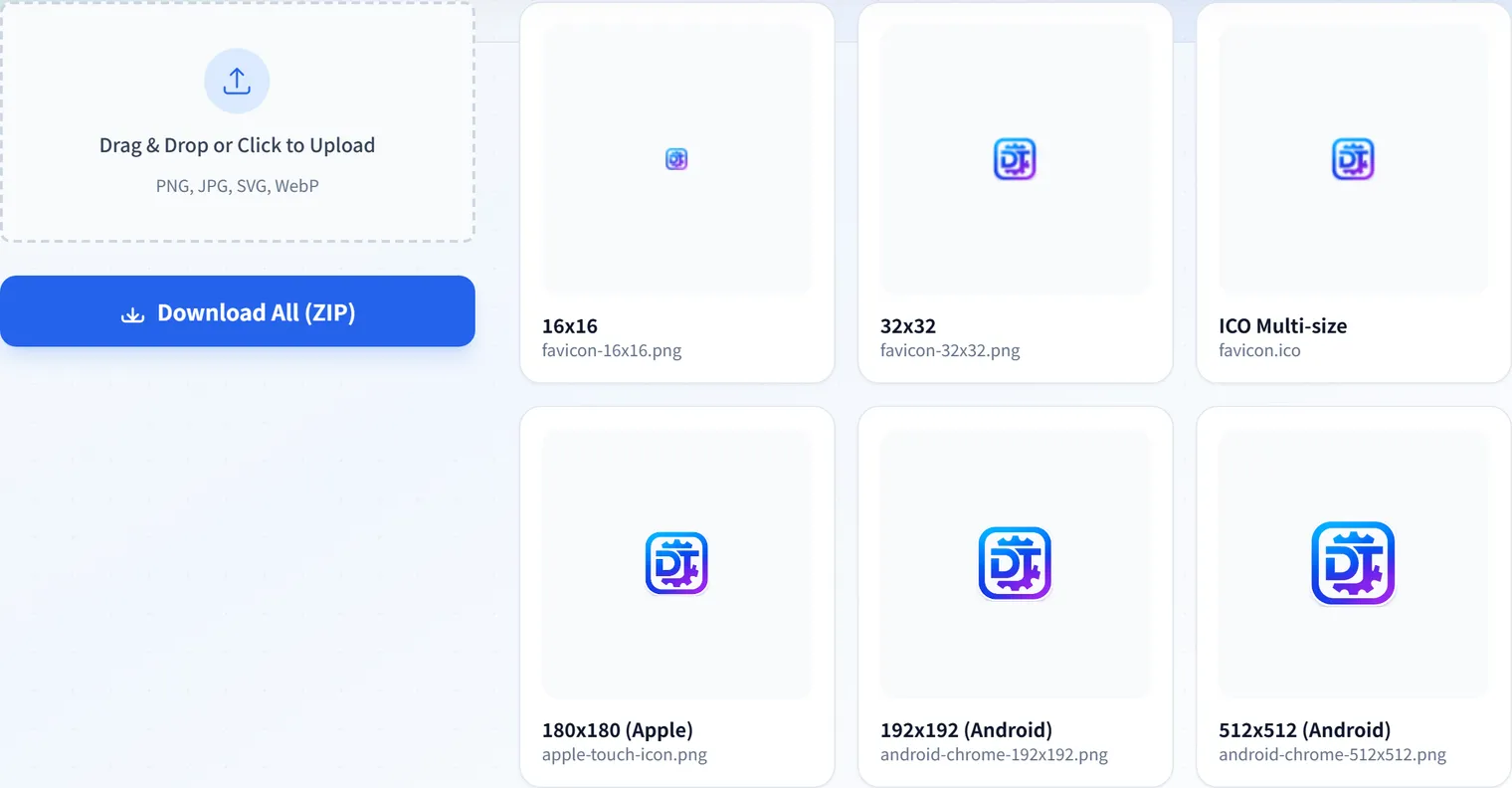
Resizing and exporting these one by one is a huge hassle. That’s why I created a tool where you can upload a single image and batch-generate the entire necessary icon set as a ZIP download.
https://devtoolkits.app/en/tools/favicon-generator/
What kind of tool is it?
When you upload a large image (PNG/JPG/WebP)—around 1024x1024 is recommended—it generates all the files needed for a standard favicon configuration.
Features
- 📦 Batch Generation: Creates
favicon.ico(containing 16x16, 32x32),apple-touch-icon.png(180x180), and various PNGs (16x16, 32x32, 192x192, 512x512) all at once. - 🔒 Secure & Browser-based: All image processing is done in the browser using the Canvas API. Since nothing is ever saved on a server, you can safely use confidential data like company logos.
- ⚡ ZIP Download: You can download all generated images as a single ZIP file, making it ready to drop into your project immediately.
- 🖼️ Maintain Transparency: If the original image is a transparent PNG, transparency is maintained across all exported sizes.
How to use it
- Open Favicon Generator.
- Drag and drop or select an image (ideally a square one).
- Check the status of each size in the preview.
- Press the “Download All as ZIP” button to save the set.
What to Check Before Publishing
Favicons display at tiny sizes, so an image that looks crisp at full size can blur at 16x16. If your logo has thin text or intricate lines, add a background color, widen the margins, or reduce it to just a symbol before regenerating.
After deploying, check how it looks in the browser tab, bookmarks, and the “Add to Home Screen” view on phones. When replacing an existing site’s favicon, caches can linger, so verify the filename, the HTML references, and the icon entries in manifest.webmanifest too.
<link rel="icon" href="/favicon.ico">
<link rel="apple-touch-icon" href="/apple-touch-icon.png">
Conclusion
Finish the tedious icon creation work in seconds and focus on your core development and design tasks!
Frequently Asked Questions
Which favicon sizes should I prepare?
At minimum, favicon.ico (containing 16x16 and 32x32) and apple-touch-icon.png (180x180) cover major browsers and iOS. For PWA and Android home-screen support, also add 192x192 and 512x512 PNGs and a manifest.webmanifest. This tool generates all of these at once.
What format and size should the source image be?
A square-ish PNG/JPG/WebP around 1024x1024 is recommended. A transparent PNG keeps its transparency across all sizes. Since details blur at 16x16, simplify thin text or intricate lines into a symbol, or add margins, for better legibility.
I replaced my favicon but it isn’t updating.
Browsers cache favicons aggressively. Renaming the file, verifying the HTML references and the icon entries in manifest.webmanifest, and doing a hard reload or cache clear usually makes the change appear.